Skins, overlay, click, voice
You watch price. ChartClock watches time.
How much of this candle is left. Where you are in the cash session. Named times like 10:00. That is the whole product — not another oscillator on the chart.
Seven skins. Same clock.
Demo them in the browser. On Pro they live in the overlay on your platform. Ruler is the default on the desktop because it reads like a session tape. Rings and Pulse stay small in a corner. Classic is the green and red columns most people recognize first.
Classic
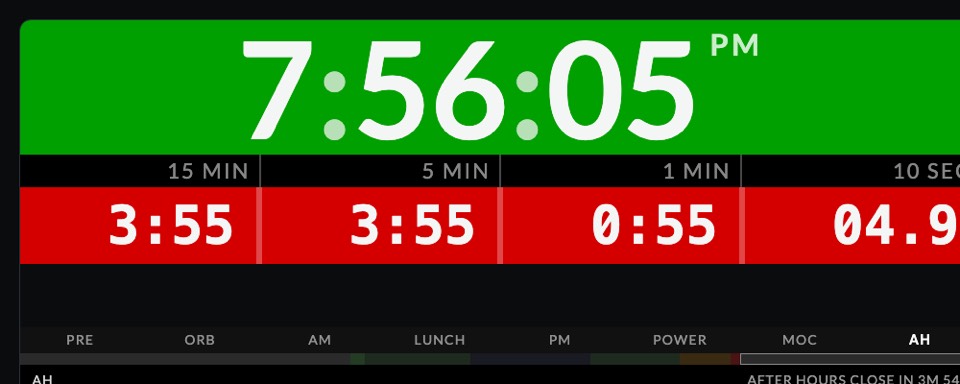
Green exchange time on one side, red remaining on the 15-minute, 5-minute, 1-minute and 10-second on the other. Use it when you want the same readout you already know from the web clock.
Transport
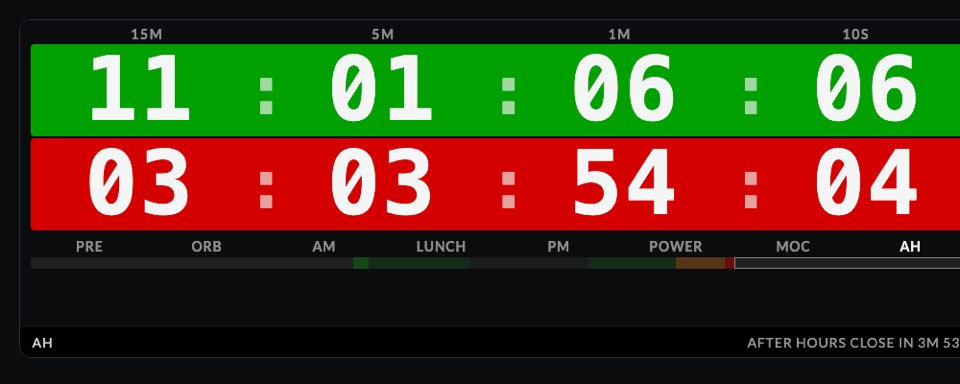
Elapsed counts up in green and remaining counts down in red, like a studio counter. Good when you care how far you are into the bar, not only what is left.
Ruler
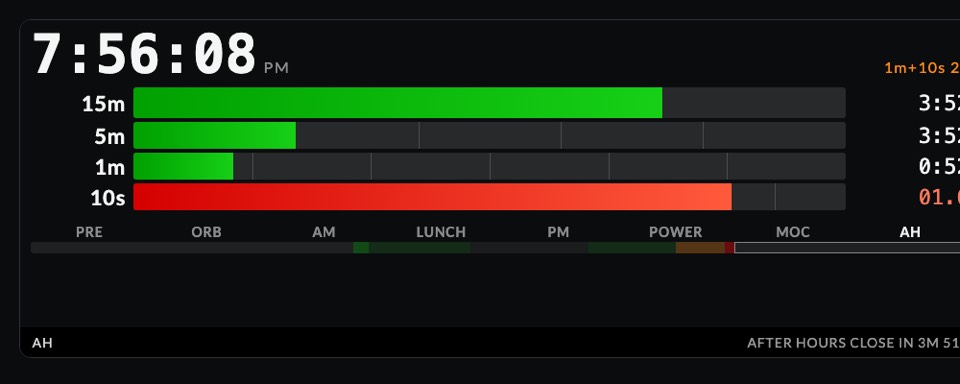
The trading day as a playhead on a session tape. This is the default on the overlay — a thin strip that shows open, the first 15, lunch, 10:00, power hour and the close without covering the candles.
Rings
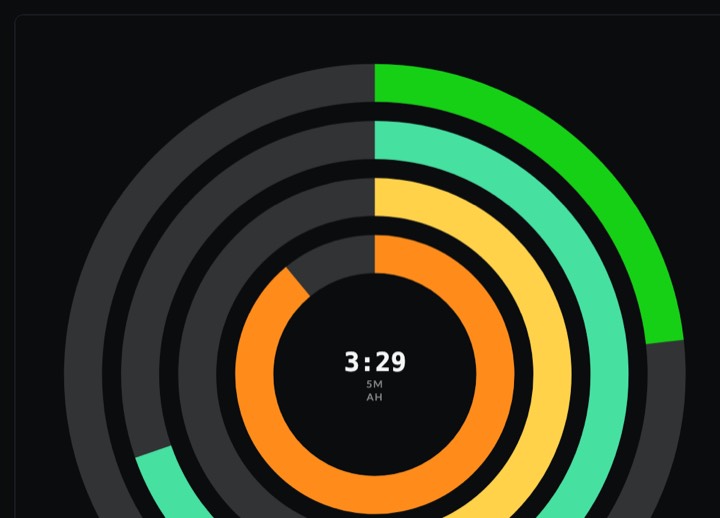
Concentric rings draining in the corner. Park it small when you want remaining in your peripheral vision and the chart to stay the star.
Pies
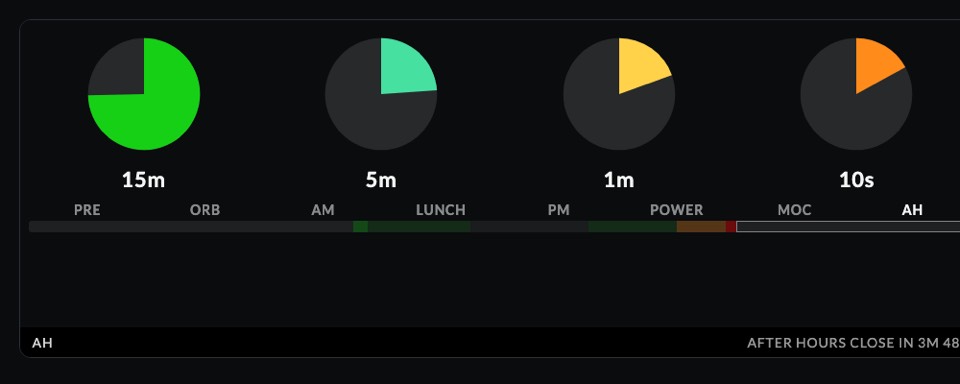
Remaining is the empty slice on each timeframe. One glance tells you whether the 5-minute is almost done while the 15-minute still has room.
Wedges
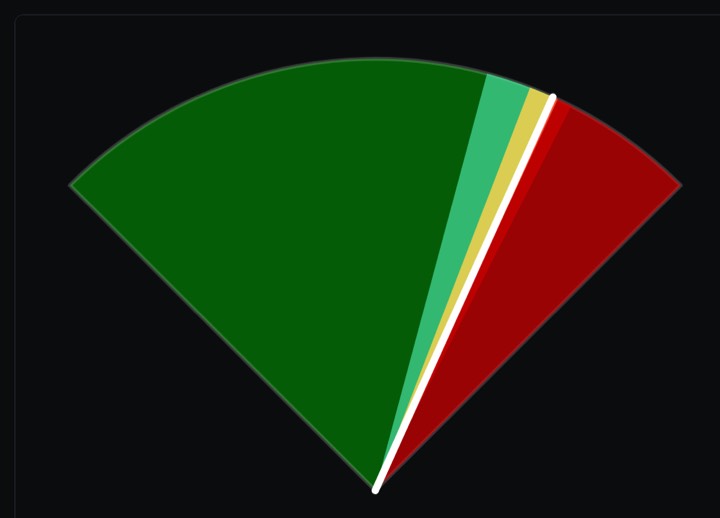
One hour as stacked live wedges. Use it when you think in the hour — opening range, the 10:00 window, lunch — more than in a single candle.
Pulse
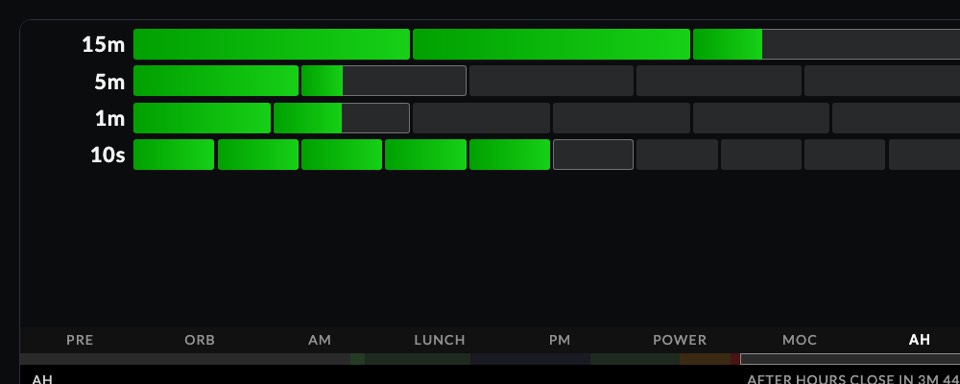
A step-sequencer grid counting into each close. Keep it small in a corner when you want to feel the bar end without staring at a counter.
Always on top, and click-through
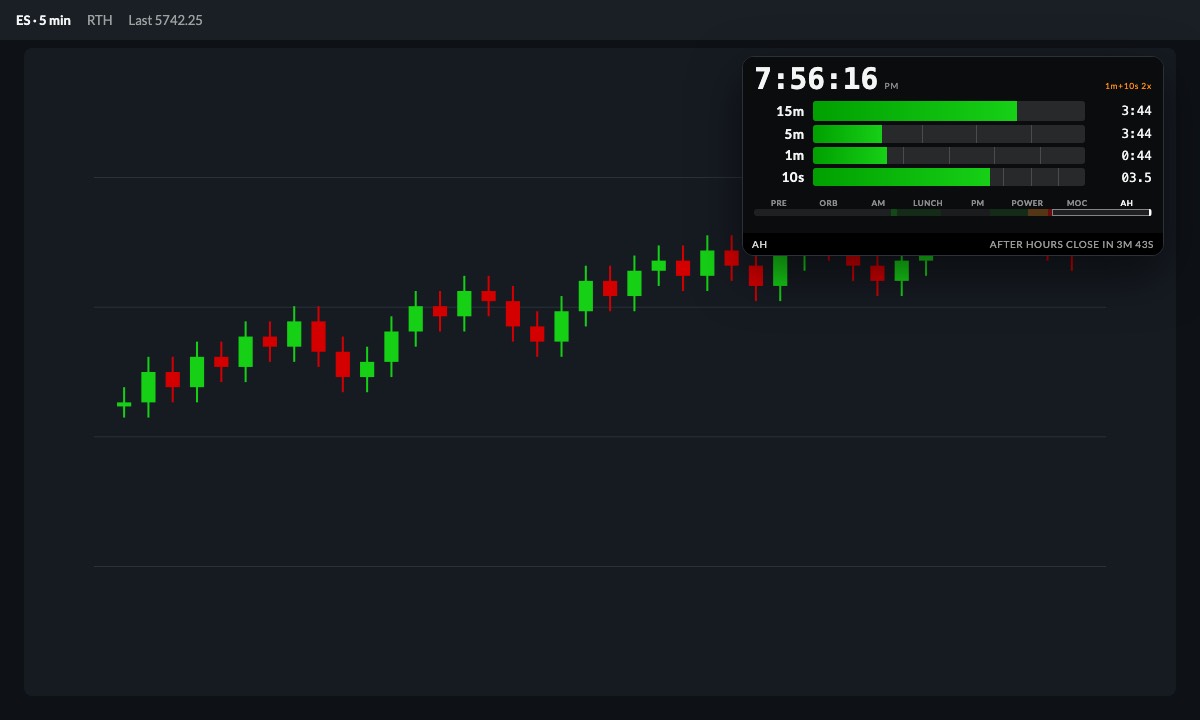
ChartClock Pro is a Mac and Windows app. It floats always-on-top of whatever you trade in. Turn on click-through and your mouse goes through the clock to the chart underneath — drawings, orders, the tape. You are not managing another window. You are trading.
Click into the close
A metronome that counts you into a close, then stays quiet. It is off until you want it. Last beat is the close — useful in the first 15 and the last hour, not something that runs all day in your ear.
A voice that does not chatter
A few spoken cues, not a play-by-play. Open. Opening range done. Two candles lining up. Two minutes to the close. You can mute it from the keyboard if the tape gets loud.